
Look up unfamiliar words while reading articles, browsing websites, or reading YouTube comments—without opening a separate dictionary.
1. Open the zeroStudy popup
Open the webpage you want to read, then click the zeroStudy icon in your browser’s toolbar. If you cannot see it, click the puzzle-piece Extensions icon and select zeroStudy.

2. Enable word lookup for this website
Turn on “Look up words on this website” and allow access to the current website if your browser asks. A green switch means it is enabled.

To enable lookup everywhere at once, choose “Enable on all websites.”
The screenshots use the Traditional Chinese interface. “在此網站查詞” is the website lookup switch.
3. Select a word and click Lookup
Close the popup, highlight a word or phrase, then click Lookup (“查詢” in the screenshot), or press Z.

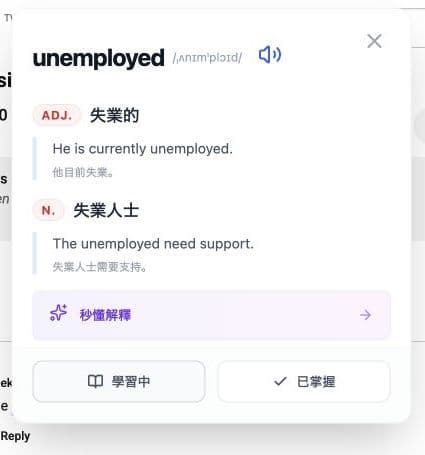
The card shows definitions. Click the speaker to hear the word, or choose Learning (“學習中”) to save it for review.
On another website that you have not enabled yet, open the popup and turn on its switch to start looking up words there too.